The Zero-Downtime WordPress Migration Guide: How to Move Hosts Without Destroying Your SEO
Moving a WordPress website to a new host is one of the most terrifying tasks for a business owner or a new freelance web developer. One wrong click, one corrupted database table, or one missing .htaccess file, and you are staring at the dreaded “Error Establishing a Database Connection” or the infamous White Screen of Death.
Worse than temporary downtime is the permanent destruction of your search engine rankings. A botched migration can result in thousands of 404 errors, causing Google to de-index pages you spent years trying to rank.
As a web developer running CubeCod Technologies, I regularly handle complex server migrations and infrastructure handovers for clients. The most common questions I get from anxious business owners are: “Can I transfer my website to a different host?” and “How can I migrate my website without losing my SEO?”
The answer is absolute yes, but it requires a strict, agency-level standard operating procedure (SOP). In this masterclass, I am going to share my exact technical workflow for achieving a zero-downtime WordPress migration while perfectly preserving your hard-earned SEO traffic.
Understanding the Infrastructure: Hosting vs. Domains
Before touching any code, we must separate two distinct technical elements that most beginners confuse: the Web Hosting and the Domain Name.
-
Web Hosting: This is the physical server (or cloud instance) where your website’s files, images, and MySQL database live.
-
Domain Name: This is your digital address (e.g.,
yourwebsite.com). It acts as a GPS routing system, telling browsers which server to look at via DNS (Domain Name System) records.
You can change your hosting without changing your domain registrar, and you can transfer your domain without moving your hosting.
Phase 1: The Pre-Migration SEO Audit (The Safety Net)
If you are wondering, “How to migrate a website without losing SEO?”, the answer lies entirely in Phase 1. Google expects consistency. If you change the URL structure during a server move, Google treats it as a completely new website.
1. Document Your Current URL Structure
Is your website currently loading as http:// or https://? Does it use www. or the naked domain (domain.com)? Your new host MUST be configured to use the exact same permalink structure. Even a slight change from [https://www.domain.com/blog/post](https://www.domain.com/blog/post) to [https://domain.com/blog/post](https://domain.com/blog/post) will trigger massive SEO drops unless handled with strict 301 redirects.
2. Crawl the Existing Site
Use a free tool like Screaming Frog SEO Spider to crawl your live website. Export a CSV file of every single active URL, image, and meta description. You will use this list after the migration to verify that every page survived the transfer.
3. Generate a Full Local Backup
Never rely on your current host to provide a backup right before you cancel their service. Log into your WordPress dashboard and use a plugin like UpdraftPlus or Duplicator to download a complete .zip archive of your files and a .sql export of your database directly to your local computer’s hard drive.
Phase 2: The Technical Server Transfer
Now, let’s actually move the files. For this, we are going to use the industry-standard migration plugin: Duplicator (or All-in-One WP Migration).
Step 1: Create the Package on the Old Host
Install Duplicator on your active, live website. Run the plugin to compile your entire website (WordPress core, themes, plugins, uploads, and database) into two files: an archive.zip and an installer.php script. Download both files to your computer.
Step 2: Prepare the New Host
Log into your new hosting environment (e.g., Hostinger, Cloudways, or SiteGround).
-
Add your domain name to the new hosting panel.
-
Create a blank, empty MySQL database and a new database user. Save the Database Name, Username, and Password in a secure notepad.
-
DO NOT install a fresh copy of WordPress. You want an empty directory.
Step 3: Upload and Extract
Using your new host’s File Manager or an FTP client like FileZilla, upload the archive.zip and installer.php files into the public_html (root) folder of your new host.
Phase 3: The Secret to Zero Downtime (The “Hosts File” Trick)

This is the most critical step that separates professional developers from amateurs. Right now, your domain name is still pointing to your OLD host. The public is still visiting the old site.
If you change the DNS records now and the new site is broken, everyone will see the broken site while you panic and try to fix it. Instead, we are going to use a developer trick to force your specific computer to look at the new server, while the rest of the world continues to see the old server safely.
Modifying Your Local Hosts File
-
Find the IP address of your NEW server in your hosting dashboard.
-
On a Windows machine, open Notepad as an Administrator and navigate to
C:\Windows\System32\drivers\etc\hosts. On a Mac, open Terminal and typesudo nano /etc/hosts. -
Add a line at the very bottom like this:
192.168.1.100 yourwebsite.com(Replace with your new server IP and your actual domain).
Now, when YOU type yourwebsite.com into your browser, you are bypassing public DNS and looking directly at the new server. Run the installer.php script. Duplicator will unpack your website and connect it to the new blank database you created.
Log in, test the forms, click the links, and verify the images load. Once you confirm the site works perfectly on the new host, remove the line from your computer’s hosts file.
Phase 4: Flipping the DNS Switch
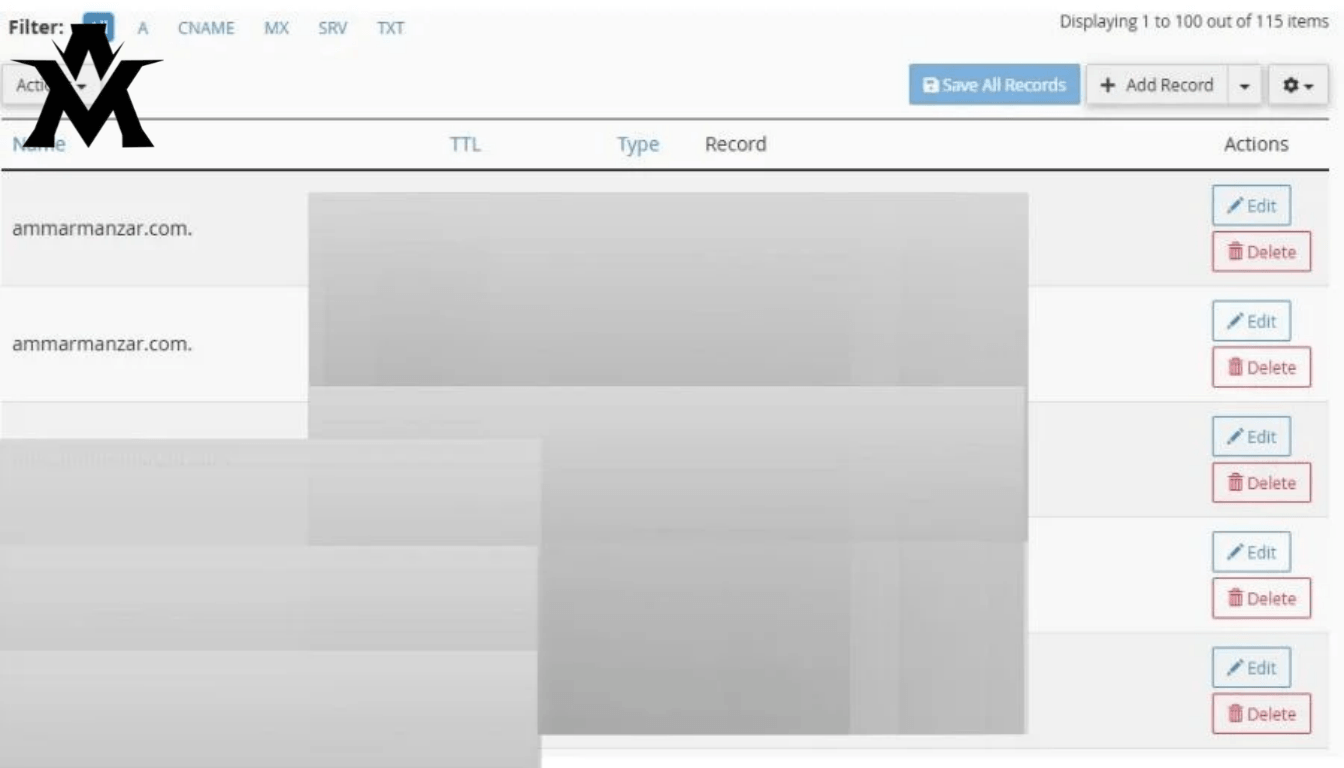
Because you tested everything locally, you can now safely route public traffic to the new server.
Log into your Domain Registrar (where you bought the domain, like Namecheap or GoDaddy) and update the Nameservers or the A Record to point to the new hosting IP address.
DNS propagation can take anywhere from 1 to 24 hours. Because you left the old site running, users will either see the old site or the new site during this window. Because both are identical, you experience Zero Downtime. Once propagation is complete, you can safely cancel your old hosting plan.
Phase 5: Domain Ownership Transfers and Costs
Often, a hosting migration coincides with transferring domain ownership—especially if you are handing a site over to a freelance client.
Can you transfer ownership of a website domain?
Yes, absolutely. Domain names are digital property and can be transferred between registrars (e.g., from your GoDaddy account to your client’s Namecheap account).
How much does it cost to transfer a domain?
Transferring a domain is rarely free, but it is not expensive. The receiving registrar will typically charge a standard transfer fee, which is usually equal to the cost of a one-year renewal (roughly $10 to $20 USD for a standard .com). Important Note: Paying this transfer fee automatically extends the domain’s expiration date by one full year.
The Domain Transfer Process:
-
Unlock the Domain: Log into your current registrar and disable the “Registrar Lock.”
-
Remove WHOIS Privacy: Temporarily disable privacy protection so the transfer authorization email can be delivered.
-
Get the EPP Code: Request the Authorization Code (EPP Code) from your current registrar and give it to the client.
-
Initiate the Transfer: The client logs into their own registrar, initiates a domain transfer, pays the fee, and inputs the EPP code. (Note: ICANN rules dictate that you cannot transfer a domain if it was registered or transferred within the last 60 days).
Final Thoughts: Securing Your SEO Post-Migration
After the DNS has fully propagated, you must execute the final SEO checks. Log into Google Search Console and check the Coverage report. Submit your sitemap again to force Google to crawl the new server. Re-run your Screaming Frog crawl and compare it against the pre-migration CSV to ensure there are absolutely zero 404 errors.
Migrating a website and transferring domains doesn’t have to be a nightmare. By keeping the old site alive, modifying your local hosts file for private testing, and meticulously managing your DNS records, you can execute a flawless, zero-downtime migration that keeps both your clients and Google’s algorithms perfectly happy.