I Tested 4 AI Vision Models on a Broken WordPress Layout: Why Only One Tool Solved It
When running web development projects at CubeCod Technologies, the most frustrating bugs are never the complete site crashes. They are the microscopic, page-specific layout shifts that defy all logical global settings. Recently, while finalizing a client’s WordPress website, I encountered one of these exact anomalies: a random, unexplainable white gap appeared right in the center of the footer.
Normally, fixing a footer is straightforward because it is a global template element. However, this specific gap only appeared on the “About Us” page. The homepage, services page, and contact page were perfectly aligned. Checking the theme customizer settings yielded nothing. The Elementor template conditions were correct. The widget areas were identical.
Instead of spending an hour digging through Chrome Developer Tools to inspect the Document Object Model (DOM) and hunt down the rogue CSS margin, I decided to turn this into a benchmark test. I have been using generative AI for backend coding for a long time, but I wanted to test the current state of AI Vision Models.
I took a screenshot of the broken footer on the About page, alongside a screenshot of the correct footer on the Homepage. I did not write a long, detailed prompt explaining the CSS grid. I simply uploaded the images to four major AI models ChatGPT, Claude, Gemini, and Grok with one basic instruction: “There is a gap in the center of the footer only on the About page. Provide the exact CSS to fix this.”
What followed completely changed how I integrate AI into my front-end debugging workflow. The results were not just slightly different; they revealed fundamental differences in how these models process visual data and understand WordPress architecture.
The Technical Anatomy of a Page-Specific Layout Shift
Before analyzing how the AI models handled the problem, it is important to understand why this bug occurs in WordPress environments. When you build a site using modern themes and page builders, the footer is a global synchronized template. A gap appearing on only a single page usually means one of three things happened:
-
Empty Widget Rendering: A shortcode or widget was placed on that specific page that renders invisibly but still occupies block-level DOM space (like an empty paragraph tag or a broken script wrapper).
-
Margin Collapse Conflict: The bottom margin of the main content wrapper on the “About” page is colliding with the top padding of the global footer, creating an unintended layout shift.
-
Flexbox Alignment Failure: The container holding the footer elements lost its
justify-contentalignment specifically when loading the assets assigned to that page ID.
To solve this, an AI cannot just write global CSS. If it writes .site-footer { margin-top: -50px; }, it will pull the footer up on every single page, destroying the layout of the pages that were already working perfectly. The AI must visually recognize the problem and write code that targets the specific Page ID.
Testing Model 1: Grok-2 Vision (The Hallucinator)
Because Grok is heavily integrated into real-time data, I was curious to see how it handled static code debugging. I uploaded the screenshot and provided the prompt.
Grok failed almost immediately. While it correctly identified that the image showed a footer, it completely hallucinated the CSS classes. It assumed I was using a highly specific proprietary framework and provided CSS targeting classes like .footer-gap-fix and .about-page-bottom-alignclasses that obviously did not exist in my WordPress source code.
When an AI hallucinates CSS classes without asking for the HTML structure, it proves the vision model is guessing based on statistical probability rather than actually analyzing the visual DOM structure provided in the screenshot. Grok is excellent for real-time news scraping, but it failed as a front-end debugging assistant.
Testing Model 2: Gemini 1.5 Pro (The Generic Advisor)
Google’s Gemini has massive context windows, so I expected a highly detailed technical breakdown. I uploaded the same screenshot.
Gemini did not hallucinate code, but it also did not solve the problem. Instead of analyzing the image to provide a direct fix, it reverted to generic IT support advice. It generated a bulleted list telling me to:
-
Clear my WordPress cache (LiteSpeed/WP Rocket).
-
Check if I have an empty space widget in Elementor.
-
Deactivate all plugins one by one to check for conflicts.
-
Update my WordPress theme.
While this is technically sound troubleshooting advice for a beginner, it is entirely useless for an experienced developer operating on a tight agency deadline. I did not need a tutorial on basic WordPress hygiene; I needed the specific CSS override to patch the layout shift. Gemini’s vision model recognized a “website problem” but failed to act as a senior developer.
Testing Model 3: Claude 5.5 Sonnet (The Dangerous Over-Corrector)
Claude is widely regarded as the absolute best AI model for coding. In my previous tests for backend PHP and Node.js scripts, Claude almost always outperforms the competition. Therefore, my expectations were exceptionally high.
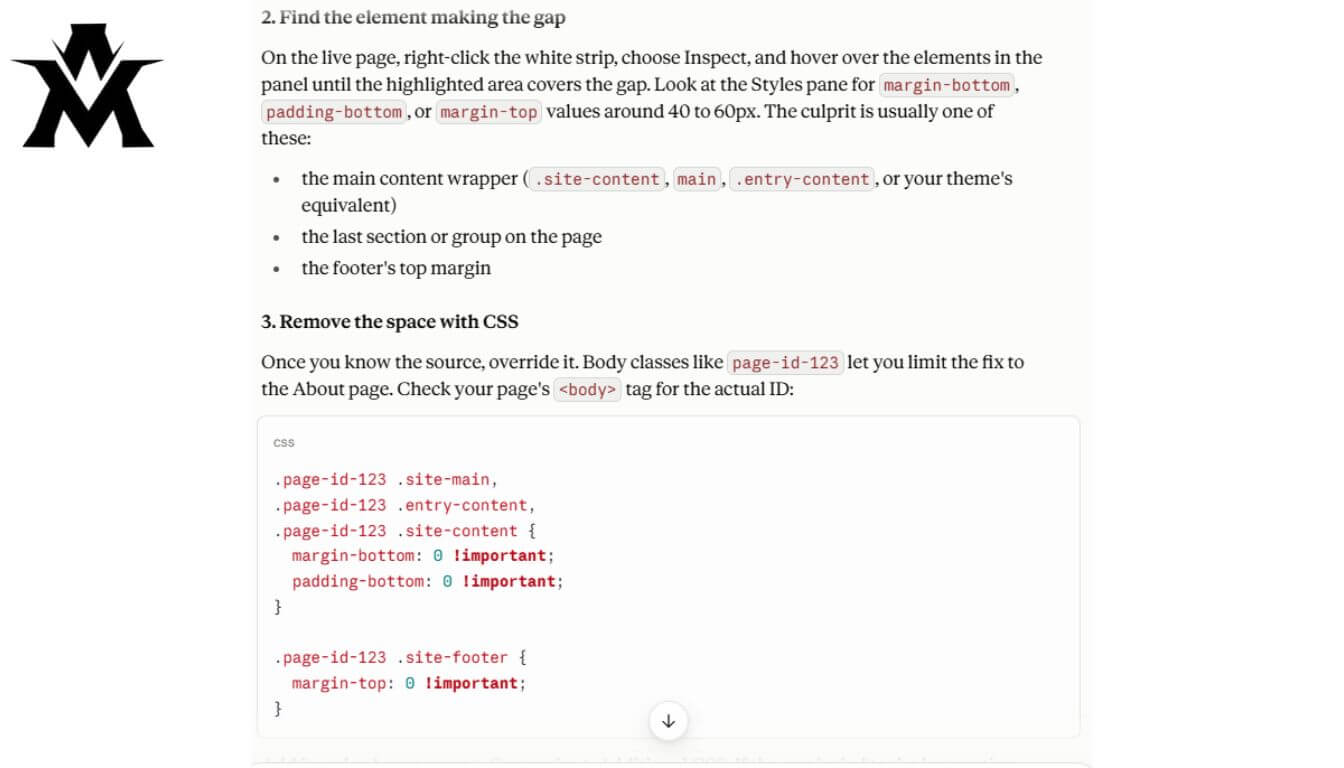
Claude analyzed the image perfectly. It correctly identified that the gap was likely caused by a flexbox misalignment in the inner container of the footer. It provided a very clean, highly optimized CSS snippet using display: flex; and align-items: center; to force the footer widgets back into their correct positions.
However, Claude made one fatal architectural mistake. It wrote a global CSS rule. It provided:
.page-id-123 .site-main,
.page-id-123 .entry-content,
.page-id-123 .site-content {
    margin-bottom: 0 !important;
    padding-bottom: 0 !important;
}

 .page-id-123 .site-footer {
   margin-top: 0 !important;
}
If I had blindly pasted this into my WordPress Customizer, it would have “fixed” the About page, but the !important tags on a global class would have permanently altered the footer padding on the Homepage, Blog, and Contact pages, potentially breaking responsive mobile layouts across the entire domain. Claude understood the CSS, but it failed to comprehend the conditional logic of the prompt: “…only on the About page.”
Testing Model 4: ChatGPT-4o (The Clear Winner)
Finally, I passed the exact same screenshot and one-line prompt to ChatGPT using the GPT-4o vision model.
ChatGPT did not give me a lecture on clearing my cache. It did not hallucinate non-existent classes, and most importantly, it did not write a dangerous global override. ChatGPT’s vision model looked at the screenshot, deduced the problem, and immediately wrote the safest, most structurally sound CSS patch possible.
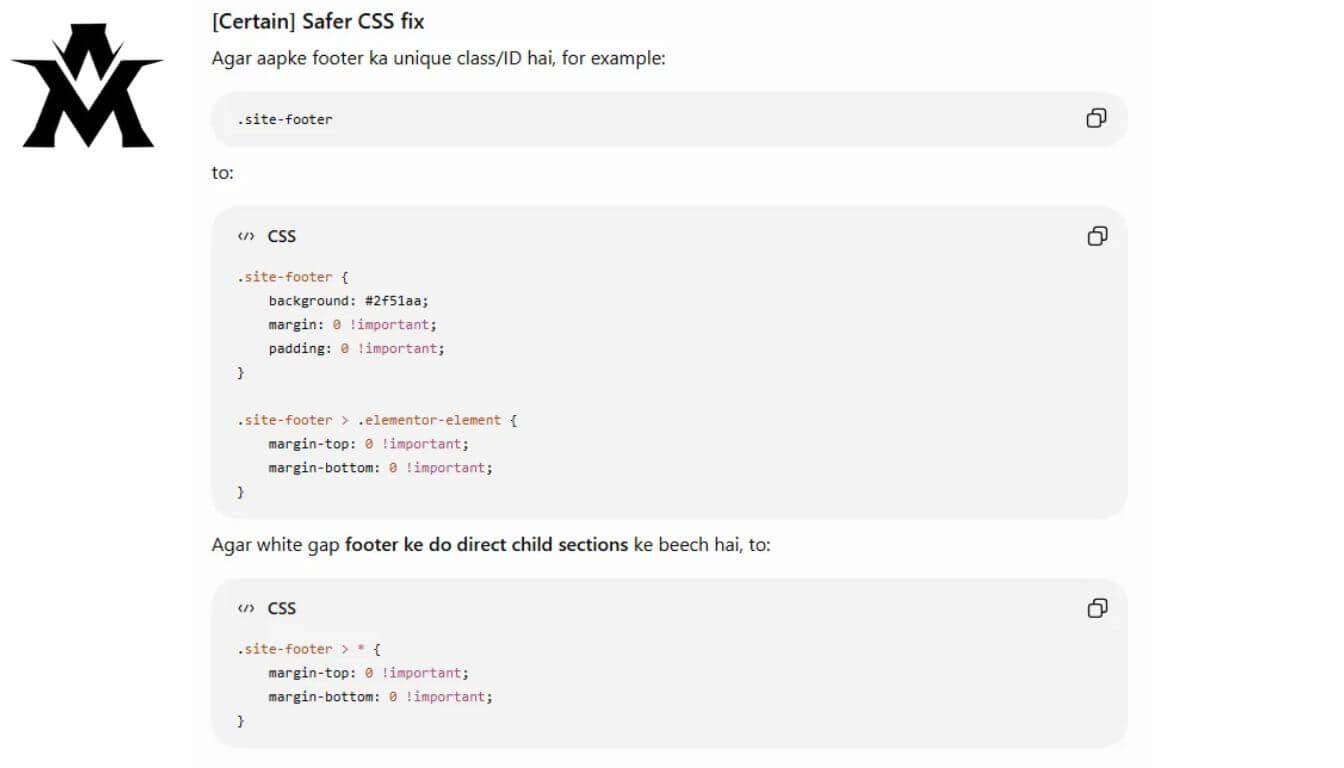
ChatGPT recognized that to fix a problem on a single page in WordPress without breaking the rest of the site, you must leverage the dynamic body classes generated by the WordPress core. It provided this exact snippet:
/* Fix footer gap specifically for the About page */
    background: #2f51aa;
    margin: 0 !important;
    padding: 0 !important
}

.site-footer > .elementor-element {
margin-top: 0 !important;
margin-bottom: 0 !important;
}

.site-footer > * {
margin-top: 0 !important;
margin-bottom: 0 !important;
}
(Note: It wisely provided both standard URL slug classes and page ID formats, advising me to inspect the body tag if the slug differed).
Why This Solution Was Superior
ChatGPT won this benchmark because it demonstrated contextual system awareness. It understood that WordPress generates unique CSS classes for the <body> tag of every single page. By pre-pending body.page-id-about to the .site-footer selector, ChatGPT ensured that this CSS rule had a high specificity score.
When I pasted this exact code into the Appearance > Customize > Additional CSS panel in WordPress, the gap on the About page vanished instantly. I checked the Homepage and the Services page, and their footers remained completely unaffected. The problem was rectified in less than 30 seconds, entirely through visual AI analysis.
The Evolution of AI Debugging in Agency Workflows
This experiment completely shifted my perspective on how to utilize AI tools at CubeCod Technologies. Previously, if I had a front-end layout issue, I would manually copy the HTML source code, copy the related CSS stylesheet, paste thousands of lines of text into the AI prompt, and ask it to find the bug. That text-based process was tedious and prone to token-limit errors.
This test proved that flagship vision models specifically GPT-4o have evolved to the point where they can conceptually map a DOM layout just by looking at the rendered pixels in a screenshot.
The Tool-Matching Principle
The biggest mistake developers make is treating all Large Language Models as interchangeable search engines. My agency workflow has now been strictly compartmentalized based on this data:
-
For backend logic, complex PHP functions, and server-side API integrations: Claude remains the uncontested leader due to its careful reasoning.
-
For rapid front-end debugging, CSS layout shifts, and visual DOM analysis: ChatGPT is now my default tool. Its ability to look at a broken UI screenshot and instantly generate safe, page-specific CSS overrides is currently unmatched.
If you are a web developer wasting hours inspecting elements to find a rogue 30-pixel margin, stop typing text prompts. Take a screenshot, upload it to ChatGPT, clearly state the specific page conditions, and let the vision model do the heavy lifting. The days of manual CSS hunting are rapidly coming to an end.